
Managing templates
How to find, edit, duplicate, archive and delete templates in Process Templates for Jira, and where the Configure Templates screen lives in Jira.
Open the Configure Templates screen
Every template in your library is editable from a single configuration screen.
Open the Apps administration page
In Jira’s top navigation bar, click the Apps icon, then pick Manage your apps from the dropdown. This is the Atlassian-standard entry point for any installed Marketplace app.
Find Process Templates for Jira
Scroll the installed-apps list (left-hand sidebar) and pick Process Templates for Jira. The detail pane on the right will surface the app’s configuration entries, including Configure Templates, Permissions and Integrations.
Open Configure Templates
Click Configure Templates to see the full library, grouped by project. From here you can open any template to edit, duplicate it, archive it, or delete it.
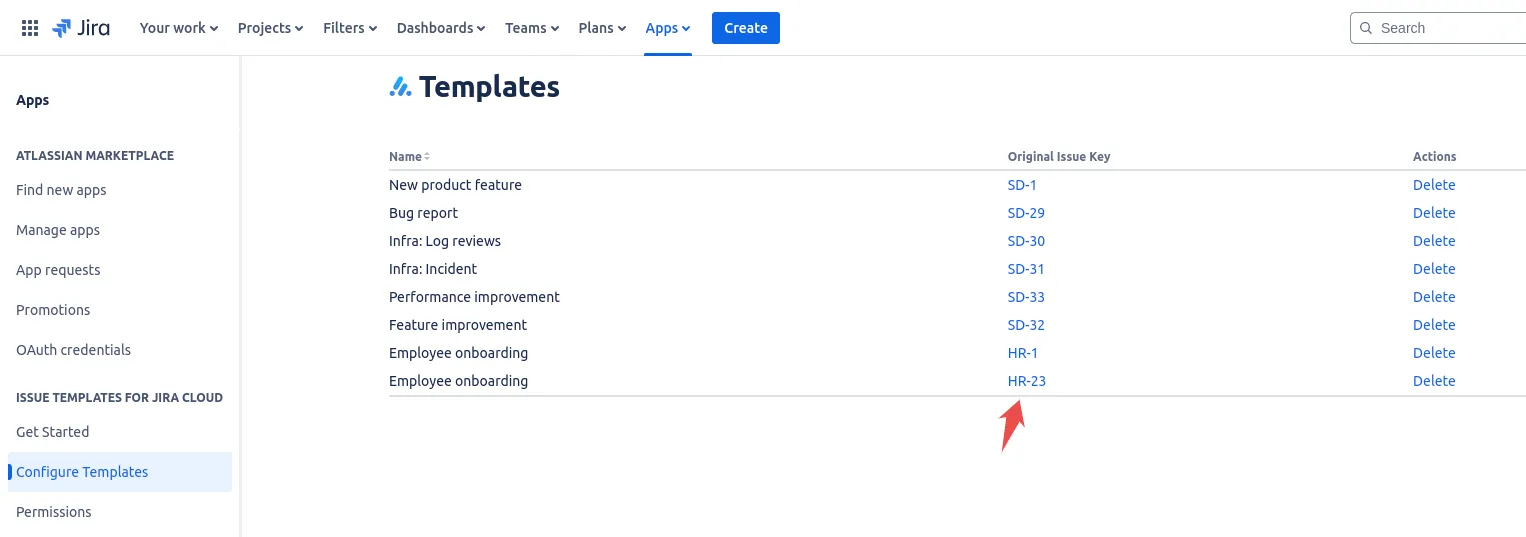 The Configure Templates screen lists every template grouped by project, with edit, duplicate, archive and delete actions.
Edit a template
The fastest way to edit a template is from the Jira issue that represents it:
- Open the template’s underlying issue.
- On the right side of the issue screen, click the three-dots menu.
- Choose Edit current template.
- The template editor opens with every field, variable and sub-task ready to modify.
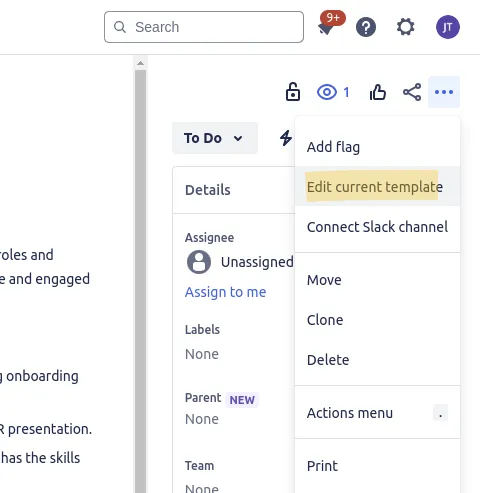 The three-dots menu on the template’s issue exposes Edit current template, the fastest route into the editor.
Edits to a live template do not retroactively change issues that were previously created from it. They only affect new tickets launched from that point forward.
Duplicate a template
Duplication is useful when you want a variant of an existing template (for example a Sev1 Incident vs Sev3 Incident template) without rebuilding from scratch.
From the Configure Templates screen, open the source template and pick Duplicate. A copy is created with ” (copy)” appended to the name. Rename the copy and adjust the variables, fields or sub-tasks for the variant.
If you are templating a whole project rather than a single issue, the project management template walks through saving a project’s epic-and-sub-task hierarchy as one reusable structure.
Archive vs delete
- Archive removes the template from the launch picker but keeps it editable from the configuration screen. Use this when you might reactivate the template later, for example a quarterly campaign template that returns each quarter.
- Delete permanently removes the template. Tickets already created from it are unaffected, but the template definition is gone. Deletion cannot be undone.
For audit-heavy use cases, prefer archiving and naming with a date suffix (for example “Incident report v1, retired 2026-03”).
Move a template between projects
Templates are project-scoped by default but can be made global. To change scope, open the template, switch the Scope setting from project to global, and save. The template becomes visible to every project where the launching user has create-issue permission.
Manage who can edit and use templates
The Configure Templates screen is also where you find the link to per-template permissions. For a deeper walkthrough of the two roles (manage vs use) and best practices, see handling permissions.
Related guides
- Building a template from scratch? Start with creating issue templates.
- Ready to launch a saved template? See using templates.
- Want reusable placeholders across your library? Read creating variables in templates.
- Control who can manage or launch each one with handling permissions.
Ready to template your Jira?
Install Process Templates for Jira on the Atlassian Marketplace. Free up to 10 users.