
How to create issue templates in Jira
Create reusable Jira issue templates in five steps: save any issue as a template, add variables, set permissions, and launch tickets in one click.
Process Templates for Jira lets you turn any Jira issue into a reusable template, then launch a fresh ticket from it in one click. This guide walks the whole flow, from installing the app to launching your first templated ticket, in five steps. It works for every issue type: Epics, Stories, Tasks, Bugs, Sub-tasks and Jira Service Management request types.
 Process Templates for Jira lives in the Jira Apps menu, one click from any screen.
Create a Jira template in five steps
Install Process Templates for Jira from the Atlassian Marketplace
Open the Atlassian Marketplace listing, click Try it free, and follow Atlassian’s install flow. The app is free for up to 10 users with a 30-day trial on paid plans, and no credit card is required to start. Full detail lives in the getting started guide.
Open any existing Jira issue and save it as a template
On any Jira issue, open the three-dots menu and choose Save as template. Process Templates for Jira captures every field, attachment and sub-task of the source issue and stores it as a reusable template. See simple templates for the capture-as-is path.
 Save any issue as a template straight from the issue menu.
Add variables for the fields that change per ticket
In the template editor, replace the values that vary (customer name, due date, environment) with variables. Choose text, dropdown or date, and reuse the same variable across the parent and every sub-task. The advanced editor and template variables cover every field behavior.
 Turn the fields that change per ticket into variables.
Set permissions and visibility
Decide which users see and use the template: project-only, role-restricted, or global. Admins keep ownership; team members can launch tickets without editing the template itself. See handling permissions for the full model.
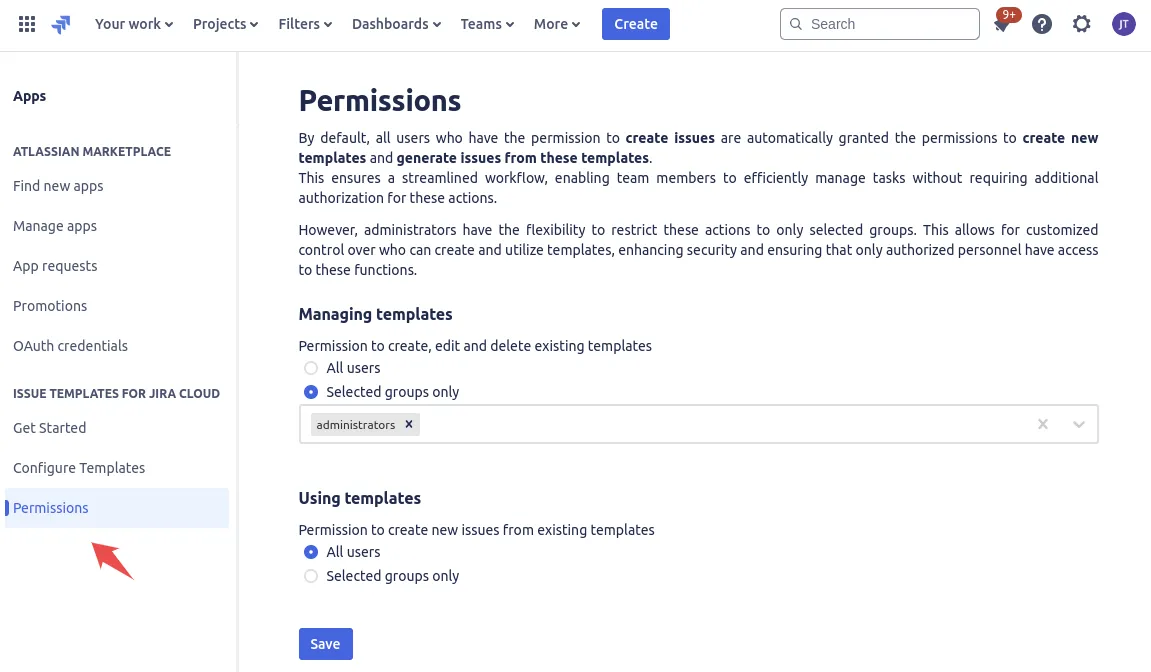 Control who can manage and who can use each template.
Launch tickets from the template
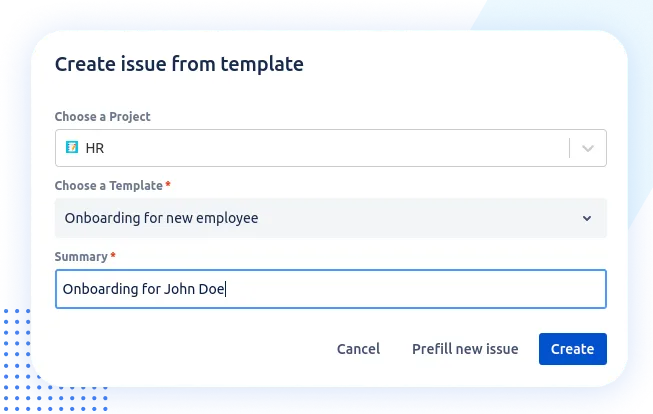
From the issue menu, the dashboard gadget, the create-issue screen or Jira Automation, pick the template and fill in the variables. Process Templates for Jira creates the ticket, and every sub-task, instantly. Later, you can find every issue a template produced with the templateKey JQL field.
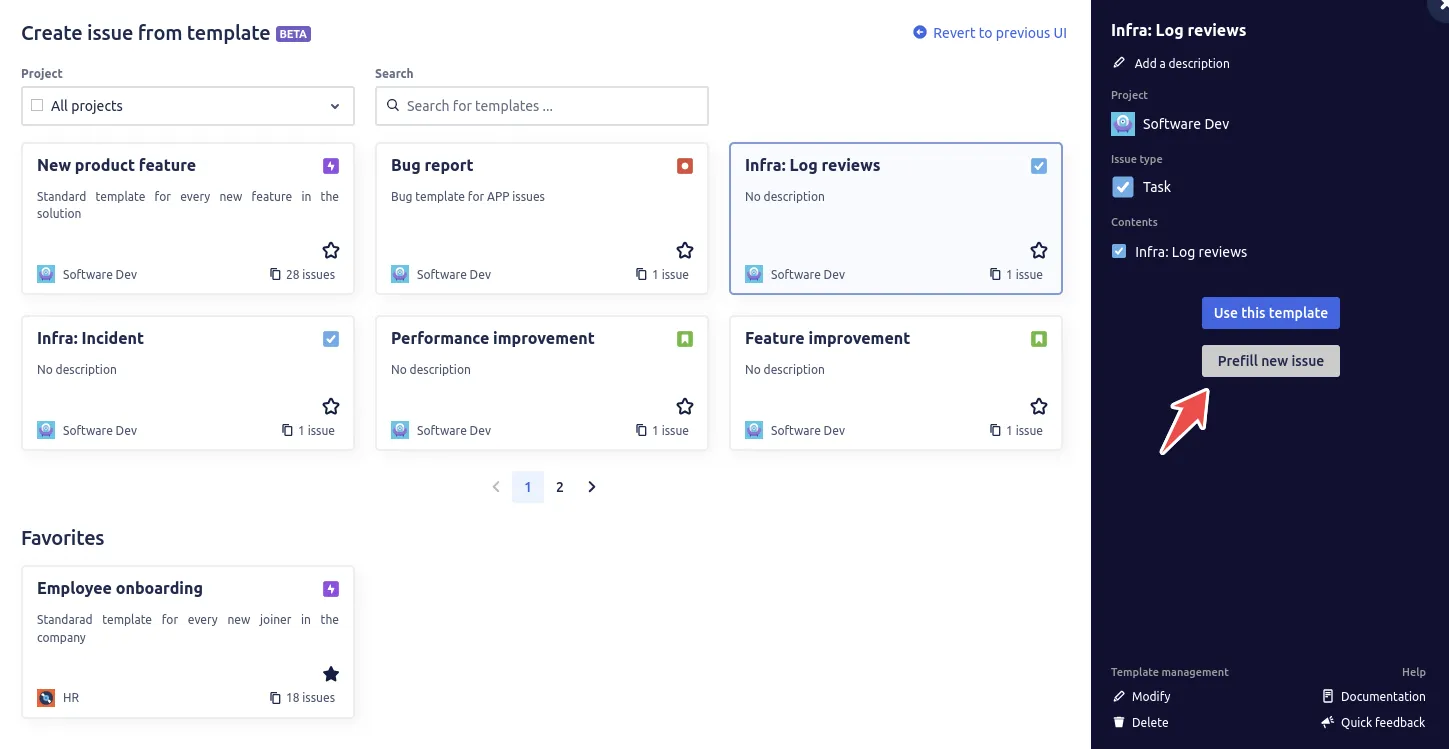 Launch a fully formed ticket, and its sub-tasks, in one click.
What Process Templates for Jira solves
Teams who reach for Process Templates for Jira usually share three problems:
- Repetitive setup: someone is re-typing the same fields into Jira every week. Sprint setup, recurring service requests, onboarding sub-tasks, recurring incidents.
- Inconsistent tickets: each member writes the same kind of ticket a slightly different way, which makes filtering, dashboards and reports harder.
- Slow ramp-up: new joiners do not know the team’s preferred ticket shape and spend their first weeks copying old issues by hand.
A reusable template removes all three. The same definition produces the same shape of ticket, every time, with the variable parts filled in by the user at create time.
Don’t see the app in the menu?
If you do not see Process Templates for Jira in your Jira menu yet, the app is not installed on your instance. It is free for up to 10 users, with a 30-day trial on paid plans and no credit card required. Install it from the Atlassian Marketplace, then follow the getting started guide.
Core feature list
- Reusable templates from any Jira issue type.
- Five variable formats: free text, dropdown, date, reusable (shares a value across fields), and original-field passthrough.
- Smart values for date and user fields, including
now(),plusDays(), anduser(). - A dashboard gadget that launches templates without leaving the dashboard.
- Hierarchy templates: one launch creates an Epic with all of its Stories and sub-tasks in a single step.
- A
templateKeyJQL field that finds every issue created from a given template, for saved filters, dashboards and reports. - Issue link preservation between templated parent and child issues.
- Jira Automation integration via webhook.
- Tempo Timesheet Account custom-field support.
- Per-template permissions at template, project and global level.
What it is not
Process Templates for Jira is not a replacement for Jira’s project field configurations. Project-level defaults still apply to every issue in a project. Templates are layered on top: per-template, optional, and triggered only when your team picks one. It is also not a workflow engine. Templates do not control how tickets move through statuses; that remains Jira’s job.
What survives an uninstall
If you uninstall the app, every issue that was previously created from a template stays in Jira as a regular ticket, unaffected. What you lose is the ability to create new templates and to launch new tickets from existing ones. Reinstalling brings everything back without data loss, because your template definitions are kept on our DigitalOcean backend in Frankfurt (EU).
Where to go next
- Getting started: install the app and configure your first template in minutes.
- Simple templates: the fastest path, capturing an issue as-is.
- Advanced templates: configure how each field behaves at create time.
- Browse the free template library for ready-made Bug, Story, ITSM and HR templates.
Ready to template your Jira?
Install Process Templates for Jira on the Atlassian Marketplace. Free up to 10 users.