
Jira Automation integration
Trigger a Process Templates for Jira launch from Jira Automation via a webhook. Enable the API, build a payload, and wire up scheduled or event-driven rules.
Why integrate with Jira Automation
Jira Automation lets you fire actions on events (issue created, transitioned, commented on, etc.) or on a schedule. Pair it with Process Templates for Jira and you get hands-off ticket creation: a new customer signs up and the onboarding Epic fires, a PagerDuty alert opens and the incident-response template fires, every Monday at 09:00 the weekly sprint-setup Epic fires.
The integration works through a webhook. Process Templates for Jira exposes an HTTPS endpoint that creates a new ticket from a chosen template when called. Jira Automation calls the endpoint via the Send Web Request action.
Step 1: Enable the API on your Process Templates for Jira install
The webhook endpoint is opt-in. Enable it from the app’s settings.
Open the app’s Integrations screen
In Jira’s top navigation, pick Apps, then Manage your apps. In the sidebar, pick Process Templates for Jira. Click Integrations in the app’s settings menu.
Open the API tab and toggle Enable API
The Integrations screen has multiple tabs. Open the API tab. Toggle Enable API to ON. The app generates a private API URL specific to your tenant.
Note the private URL and open the Payload Builder
Copy the private API URL somewhere safe. Below it, the Payload Builder is a small tool that produces the JSON body Jira Automation needs to send for a given template (with variables, sub-tasks, etc.). Pick the template you want to call, fill any variables with literal values or Jira Automation smart values, and copy the generated JSON.
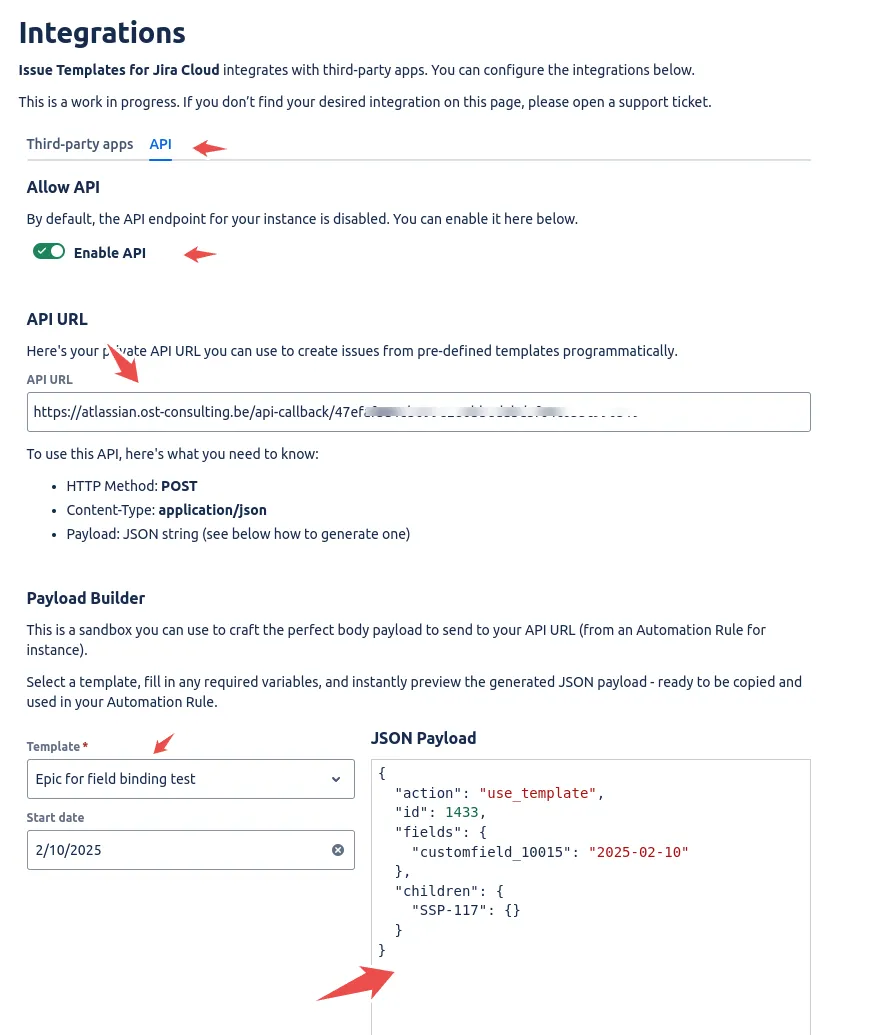 The API tab exposes the private API URL and the Payload Builder that generates the JSON body for your chosen template.
Step 2: Create the Jira Automation rule
Open Automation Rules
In Jira’s project sidebar or in Jira admin, open Automation Rules.
Add a trigger
Pick Create Rule and choose the trigger. Common triggers:
- Issue created fires the template when a new ticket appears in a project.
- Issue transitioned fires when a ticket moves into a specific status.
- Scheduled fires at a defined cadence (daily, weekly, every Monday at 09:00, etc.).
Add the Send Web Request action
After the trigger, add the Send web request action. Configure it as follows:
- Web request URL: paste the private API URL from step 1.
- HTTP method:
POST. - Web request body: pick Custom data and paste the JSON from the Payload Builder.
- Headers: add
Content-Type: application/json. This header is required; without it the call fails silently.
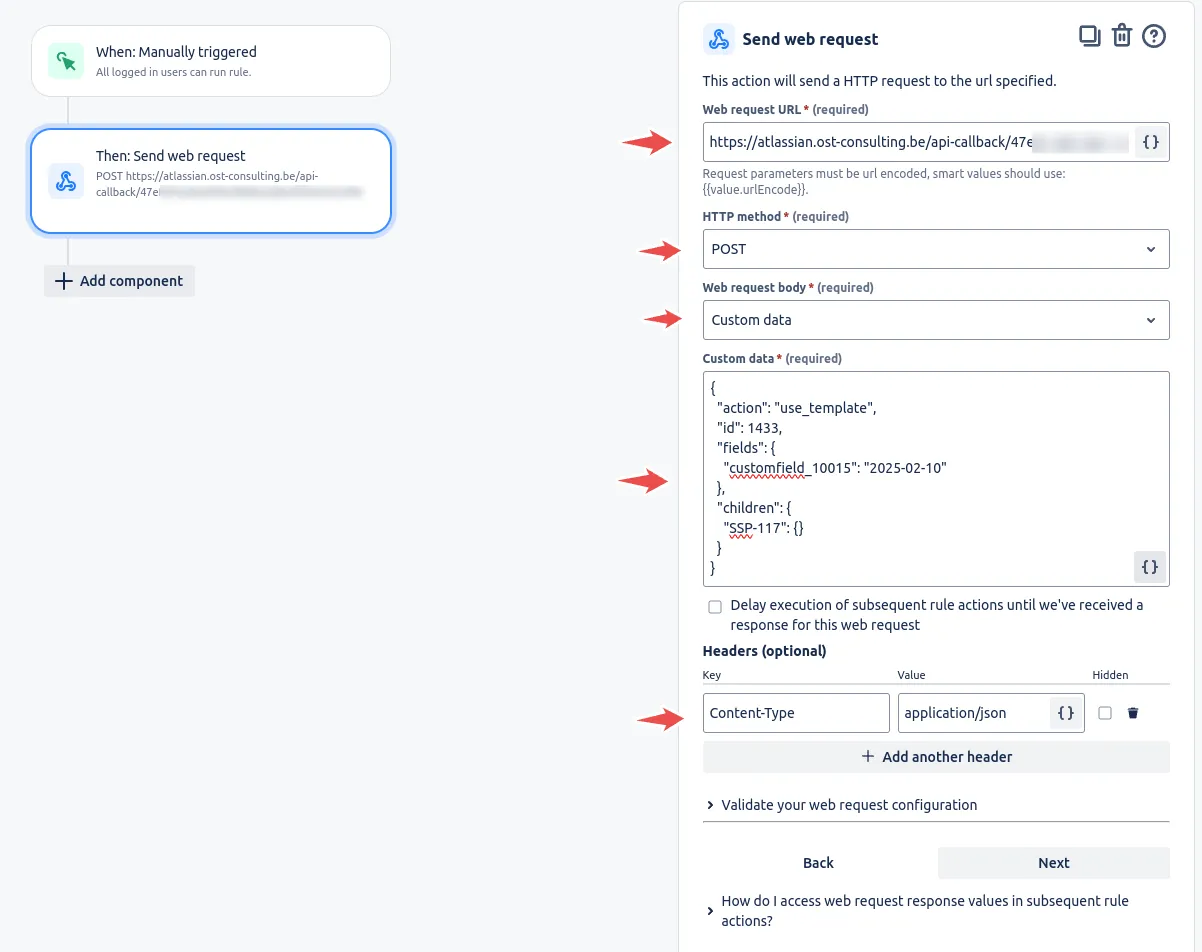 The Send web request action: paste the API URL, set POST, drop the Payload Builder JSON into Custom data, and add the Content-Type header.
Step 3: Save and test
Save the automation rule. Trigger it manually (or wait for the trigger condition) and check that the templated issue appears in Jira as expected. If it does not, open the Automation rule’s execution log to see the response from the webhook. Most failures are payload-shape issues that the Payload Builder helps catch.
Schedule a template
Scheduled rules are the simplest case. Pick Scheduled as the trigger, set the cadence and time, then add the Send Web Request action. The rule fires the template at the scheduled cadence with no human intervention.
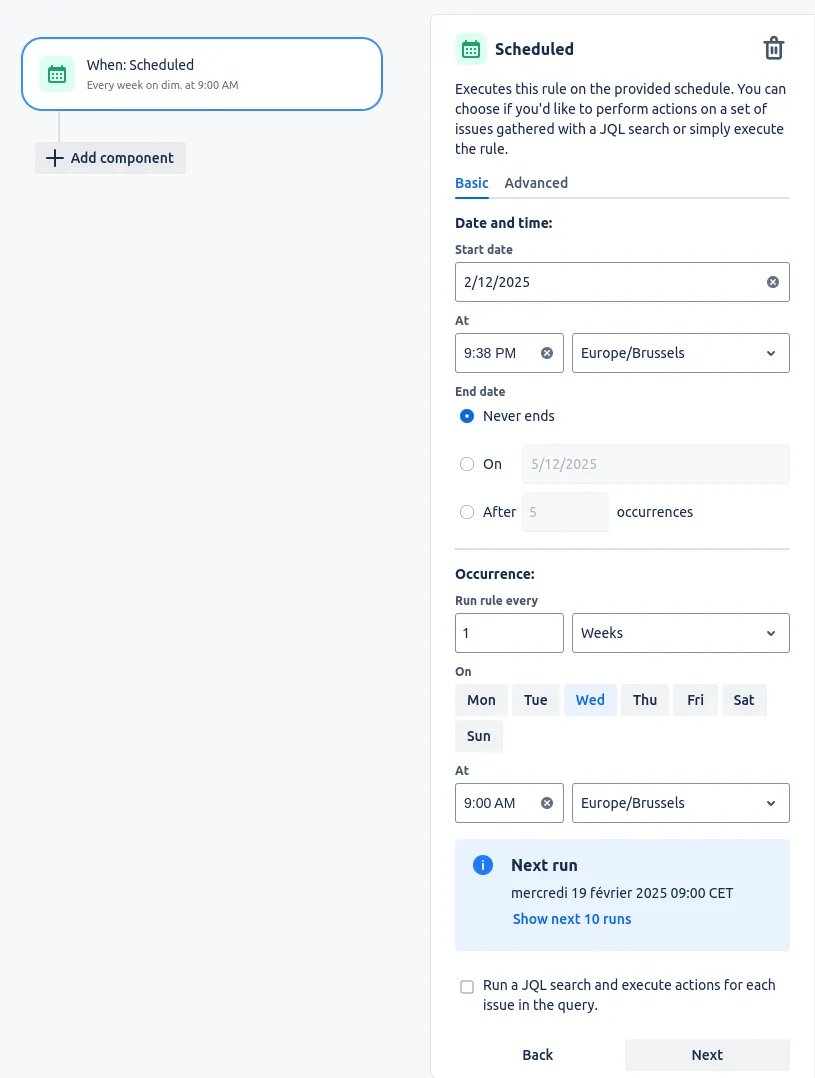 A Scheduled trigger configured to fire weekly at 09:00, so the template runs on a fixed cadence with no human intervention.
Useful patterns:
- Weekly sprint-setup Epic: scheduled every Monday at 08:00.
- Monthly retrospective Story: scheduled the last working day of the month.
- Quarterly compliance review: scheduled on the first day of each quarter.
What this unlocks
With Jira Automation in the loop, Process Templates for Jira becomes the engine behind any recurring ticket-generation workflow. The template defines the shape; Automation decides when to fire it; the result is a fully-formed Jira issue (with sub-tasks, variables resolved, links preserved) appearing in the right project at the right time.
Related guides
- Other integrations available in Process Templates for Jira covers the full set of third-party connections beyond Automation.
- Creating variables in templates shows how to define the fields the Payload Builder fills in.
- Creating issues from templates explains the manual path that the webhook automates.
- Preserving the links between issues details how sub-task and issue links survive automated creation.
Ready to template your Jira?
Install Process Templates for Jira on the Atlassian Marketplace. Free up to 10 users.