
Dashboard gadget
Launch Jira issue templates from any dashboard in one click. How to add the Process Templates for Jira gadget and share the dashboard with your team.
What the gadget does
The dashboard gadget surfaces your team’s most-used templates on a Jira dashboard. Your team members open the dashboard, click a template card, fill any variables, and the ticket is created. Three clicks at most, no menu diving.
For teams that create the same kind of ticket every day (ITSM intake, daily standup follow-ups, support escalations, recurring work orders), the gadget removes the friction of navigating to the Apps menu every time.
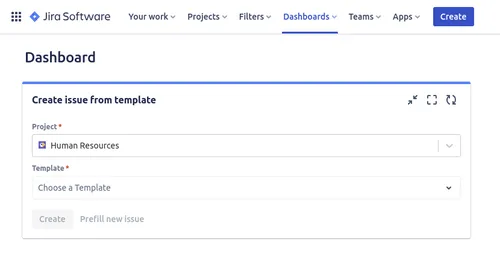 The gadget surfacing a template picker on a Jira dashboard.
Add the gadget to a dashboard
Open the target dashboard
Sign in to Jira and open the dashboard where you want the gadget. If you are creating a fresh dashboard for the team, this is the moment.
Enter edit mode
Click Edit in the top-right corner of the dashboard. The right-hand gadget panel opens.
Find the gadget
In the gadget panel’s search field, type “Template”. The gadget appears in the results.
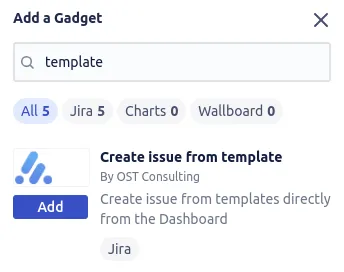 Search for “Template” in the gadget panel, then add the gadget.
Add the gadget
Click Add next to the gadget. It is placed on the dashboard. Drag it to wherever you want it. Resize if needed.
Configure the gadget
The gadget asks which templates to surface. Pick the three or four templates your team uses most. The picker respects each user’s permissions, so users who cannot use a template will not see it on the gadget.
Save and share
Exit edit mode. The gadget is now live. Share the dashboard with your team (Jira’s standard dashboard sharing controls) so they can use it from their own Jira sessions.
Best practices
- Surface no more than five templates per gadget. More than that and the gadget stops being a “one-click” surface; users start scrolling.
- One gadget per team. ITSM team gets its dashboard with ITSM templates. Engineering gets its own dashboard. Customer success gets theirs. Sharing one mega-dashboard with everyone’s templates dilutes the value.
- Pair with a brief Confluence note explaining when each surfaced template should be used. The gadget makes launching easy; the Confluence note keeps people from launching the wrong thing.
- Review quarterly. Templates fall out of use. Templates get added. Refresh the surfaced set every quarter so the gadget stays current.
Related guides
- Create issues from templates covers the launch flow the gadget triggers.
- Prefill the issue creation screen controls what users see after they pick a template.
- To find every issue created from a template (via the
templateKeyfield), see JQL searches with templates.
Ready to template your Jira?
Install Process Templates for Jira on the Atlassian Marketplace. Free up to 10 users.