
Creating variables in templates
Five variable formats for Jira templates: free text, dropdown, date, reusable across sub-tasks, and original-field passthrough.
What a variable is
A variable is a placeholder inside a template that the user fills in at create time. Wrap any field, or any piece of text inside the summary or description, in a variable, and your template adapts per launch without you having to define a new template.
Variables make the difference between a template that produces identical tickets every time and a template that produces consistent-but-personalized tickets every time.
Where variables can live
You can place a variable in:
- The summary.
- The description.
- The Epic name.
- Any custom field that supports a templated value, including text, dropdown and date fields.
There is no limit on how many variables a single template can hold. A bug template often has three or four; an onboarding Epic with sub-tasks might have a dozen, with several of them shared across the children.
How to write a variable
Inside the template editor, a variable is its name wrapped in double angle brackets: enter the variable as the literal text and the editor stores it as a typed input the user will see at launch.
Five variable formats
The variable format determines how the user fills it in.
Free text
A single-line text input. Use for short answers like a customer name, an environment string, a ticket reference number.
 A free text variable gives the user a single-line input at launch.
Dropdown
A select with a list of predefined values. Use when there is a fixed set of valid options, like severity (Critical, High, Medium, Low) or department.
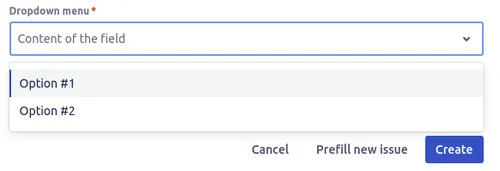 A dropdown variable restricts the user to a fixed list of valid options.
Date
A date picker. Use for due dates, planned start dates, or any field that expects a calendar date.
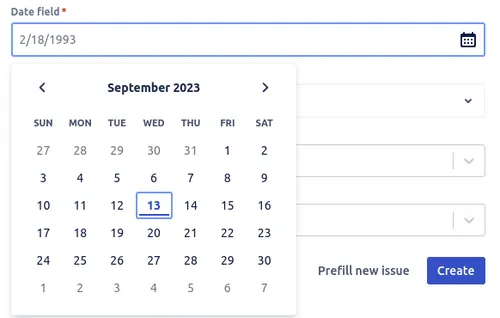 A date variable presents a calendar picker for due dates and planned start dates.
Reusable
A variable that takes its value from another variable on the same template. Use for cases where a value should propagate: the customer name on the parent Epic appears unchanged on every sub-task, the sprint number on a sprint-setup template appears in every Story underneath.
Original field
A passthrough that displays the value from the source issue. Useful when you want the user to see what the template’s default was while still letting them override it.
Configure variables in the advanced editor
Variables are configured in the advanced template editor:
- Open the advanced editor for the template you want to configure (or create a new advanced template).
- Pick the field where the variable should live.
- Switch the field’s mode to Variable.
- Pick the variable format (free text, dropdown, date, reusable, original field).
- Configure the variable’s options (dropdown values, default, required flag).
- Save the template.
When the user launches the template
Variables are presented as a small form before the ticket is created. Required variables block the create action until they are filled. Optional variables can be left blank, in which case the underlying field falls back to its default (or stays empty if there is no default).
For variables that propagate to sub-tasks, the user only fills the parent variable, and the value flows through to every child automatically.
Related guides
- Prefilling the issue creation screen shows how variable values land in the create dialog.
- Smart values in templates covers dynamic values that compute themselves instead of being typed in.
- Creating issue templates walks through building the template that holds your variables.
- Creating issues from templates explains what the user sees when they launch a template with variables.
Ready to template your Jira?
Install Process Templates for Jira on the Atlassian Marketplace. Free up to 10 users.