
Variables, issue hierarchies, and per-field config: all live in Process Templates for Jira
Per-field control, variables, sub-task hierarchies, and variable reuse are all live in Process Templates for Jira. Here's what each one does.
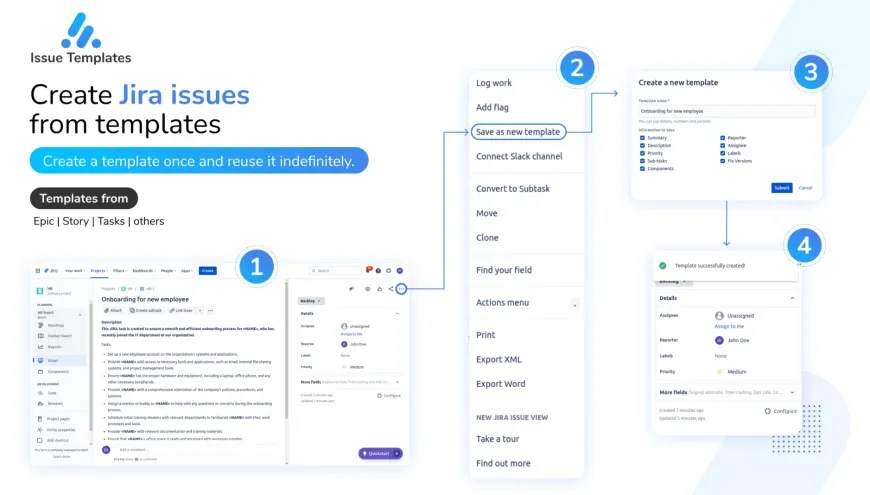
Process Templates for Jira exists to stop teams from rebuilding the same Story, the same incident report, or the same onboarding checklist by hand every single time.
These features have shipped
Everything described below is live. Install the app and you can try all four features today: per-field control, variables you fill in at create time, variable reuse across an issue and its children, and full issue hierarchies in a single template. If you want to follow along inside your own instance, start with the getting started guide and keep a project open in another tab.
Per-field control on the template editor
The template editor gives you per-field control over every template. The first version saved an issue as a template more or less as-is. The current editor lets you configure each field on its own instead.
That means you configure each field on its own rather than treating the template as one frozen blob. You can:
- Set a sensible default value for a field so it lands pre-filled.
- Decide whether a field is locked to that default or editable at create time.
- Leave a field out entirely so the creator fills it in fresh.
The practical payoff is templates that match how your team actually works. A bug template can hard-code the issue type and a triage label while leaving the summary and environment fields open. A release Epic can lock the component and pre-fill the definition of done. If you are setting up your first one, the creating issue templates guide walks through the screen field by field, and the simple templates article is the fastest way to see the basic flow end to end.
Variables you fill in at create time
Take a customer onboarding template: it can prompt for the customer name, region, and kickoff date the moment someone creates from it. That is variable support, and it is the feature people ask about most.
A variable is a placeholder you define once in the template and resolve when the issue is created. Instead of hard-coding a value, you prompt the person creating the issue for it. Define a variable for a customer name, a sprint goal, a target environment, or an assignee, and the create flow asks for that value before the issue is generated.
Variables come in a few types so the prompt fits the data:
- Text for free-form input like a customer name or a short description.
- Dropdown for a fixed list of choices, so people pick from valid options instead of typing.
- Date for deadlines, go-live dates, or review windows.
A single template can serve a dozen near-identical situations. One incident template, one onboarding template, filled differently each time. The variables article covers the types in detail, and once you are comfortable you can layer in smart values to compute fields automatically rather than asking for them.
Reuse variables across parent and child issues
Defining a variable on a single issue is handy. Defining it once and having it flow through an entire hierarchy is what makes it scale.
With variable reuse, a value entered on a parent issue carries into its sub-tasks without being asked for again. Enter the customer name once on the parent Story, and every sub-task that references that variable picks it up. Enter the target release on an Epic, and the child issues inherit it.
This matters most for the teams running complex issue trees, where the same handful of facts (customer, environment, owner, due date) need to stay consistent across a parent and everything underneath it. Re-typing those values per sub-task is exactly where copy-paste errors creep in, and this removes that risk entirely.
Full issue hierarchies in a single template
A template can capture an entire Epic with its Stories and Sub-tasks in one save. Rather than creating a Story and then manually adding the same five sub-tasks every sprint, you save the whole shape once.
When someone creates from that template, the parent and all its sub-tasks appear together, in order, ready to be filled with whatever variables you defined. A “new feature” template can ship with sub-tasks for design, implementation, tests, and documentation already in place. An onboarding template can lay out every step a new hire needs from day one.
Combined with variable reuse, this is where the four features compound: one create action produces a fully populated parent plus its children, with shared values flowing through the tree. See the browsable template library for ready-made shapes like a story template or an HR employee onboarding template you can adapt.
How the four features work together
These features are designed as a set, not a list. Per-field config decides what each field does, variables decide what gets asked, reuse decides how answers spread, and hierarchy templates decide what gets built in one go. Used together they turn template creation from a copy-paste chore into a repeatable process you can hand to anyone on the team.
More ways to extend your templates
The features below extend the same idea once your templates are in place:
- A dashboard gadget so people create from templates without leaving their board.
- JQL search by template to find every issue created from a given template.
- Issue-link preservation so relationships between issues survive templating.
- Permission management to keep template control at the project or global level.
Try it free
All four features are live and free to try up to 10 users. The app runs on Atlassian Forge with data stored in EU data centres in Frankfurt, it is Cloud Fortified, and it stores no personal data.
Pricing stays out of the way while you evaluate: free for up to 10 users, then 0.50 USD per user per month above that, with a 30-day free trial and no credit card required. See the pricing page for the full breakdown. Around 437 teams have it installed, with a 4.6/5 rating across 20 reviews.
Install Process Templates for Jira from the Atlassian Marketplace, then follow the using templates guide to put these features to work. Want a full feature overview before committing? See all features first, then browse the template library for ready-made shapes. If you get stuck, the support page is the fastest way to reach us.
Found this helpful? Share it.
Ready to template Jira tickets?
Install Process Templates for Jira from the Atlassian Marketplace. Free up to 10 users, 30-day trial above that.